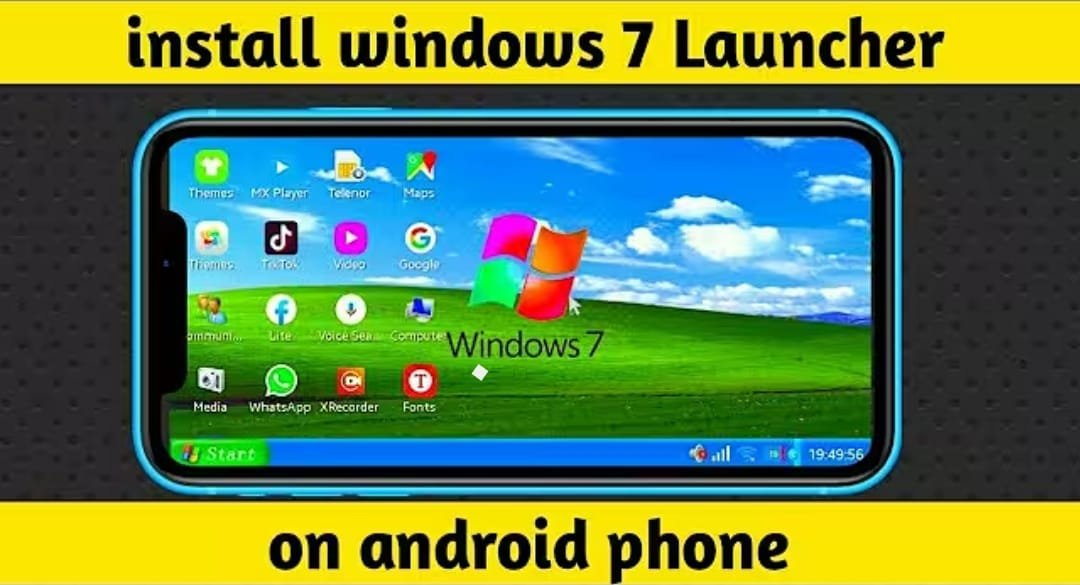
Have you ever wanted to use your phone as a desktop computer? Wouldn’t it be nice to have the appearance, if not all the features, of Windows 11 on your Android device — complete with a Start menu, taskbar, icons and even file explorer? Whether it’s productivity, entertainment, or simply bringing your phone into a world more familiar to you and your tech-savvy friends, turning an Android device into a Windows-like machine is not only possible but cool enough to be worth the effort.
Here’s how you can do it and replicate the desktop windows on your Android phone.
What You’ll Need In Advance
Before we start downloading apps and messing around with settings, ensure you’ve got the right gear.
Compatible Android Device
Skins and emulators of Windows will not run well on all devices. A mid-range or high-end Android phone with not too shabby RAM (at least 4GB) is great.
Storage Space Consideration
The majority of these launchers and emulators would need supplementary space. Clear at least 2-4 GB of space before you get started.
Stable Internet Connection
For those seeking remote desktops or non web based software, the Wi-Fi is key.
How to Make Android look like Windows
Go from Android to Windows, filled with uncertainty? Here are three deadly techniques for pulling that off.
Method 1: Using Win 11 Launchers
Launchers are apps that swap out the user interface (UI) of your Android phone for something entirely different, in this instance Windows 11.
Best Windows Launchers on Android
- Win 11 Launcher – Closest to Windows 11 UI.
- Computer Launcher 2 – Has a desktop interface with start menu and taskbar.
- Win-X Launcher – A Windows 10 based launcher with powerful tiling.
These apps give your phone a Windows-like look — but no, they can’t run native Windows software.
Bonus Tips to Get the Most From Your Experience
No, let’s not stop at just looks — let’s add some taste to your freshly-minted “Windows Phone.”
Use a Bluetooth Keyboard and Mouse There’s another way to add a mouse into the system.
I love tap-tap typing, but there’s nothing like an actual keyboard and mouse. The majority of Androids use Bluetooth input devices.
Plug Into a Monitor with USB-C or Wireless
Have a monitor and a USB‐C to HDMI adapter? You’re well on your way to creating a mini desktop. Or wirelessly mirror content using Chromecast or Miracast.
Optimize Your Launcher Theme
Change the colors, wallpaper and icons to give yourself that authentic Windows environment. And some launchers even offer widgets that look like File Explorer and Control Panel.
Security and Privacy Considerations
Let’s not sacrifice security for coolness.
Remote Access Safety
Never allow RDP connections to a desktop without a password. Never allow public access to your IP address or carelessly share it with others.
Emulators & Malware Risk
Is it safe to download cracked apk of ExaGear or any random EXE? That’s a recipe for malware. Use trusted sources only.
Last Thoughts – Is It Worth It?
Turning your Android into a Windows look-a-like isn’t limited to novelty — it’s also fun and even practical. Whether you do it for practical reasons, purely aesthetic ones or just to stir the pot among friends and family is up to you — but at least once, this transformation is worth checking out.
You would not be able to access the full PC performance, but you would have access to enough performance that you might surprise people — and yourself.
Conclusion
Converting your Android phone into a Windows computer is one of the best things you can do to bring some variety to your device usage. It’s functional, pleasurable and not terribly complicated if you take the correct steps. Whether you’re hoping to find a productivity hack or a fun weekend project, this guide will show you everything you need and all the steps required to get a tiny Windows-powered wonder in your pocket.